
How to Build a Café Website That AI Search Can Read With Bluehost AI Builder, in Two Chat Messages
In one minute: I built a demo café site with Bluehost AI Builder and set it up for AI search in two chat messages. The first prompt gave me a five-page site with a text menu, an FAQ and weekend brunch reservations in about four to five minutes. One follow-up message added café and FAQ schema, a sitemap, an llms.txt file and the café name and city in every page title, and I confirmed each one in the code. Bluehost AI Builder is $0 to start, no credit card, and paid plans from $20/mo.
A café lives and dies on questions like “where can I get gluten-free brunch near Harbourfront?”
Some of those questions now go to ChatGPT, Perplexity, Claude or Google’s AI Mode instead of a map app. Those tools can only recommend you if they can read your site.
So I tested whether Bluehost AI Builder can make a site that AI search can actually read. In my hands-on Bluehost AI Builder review I built a garage cleanout site and looked at the basics. Here I go deeper on the AI search side, with a restaurant-style business.
Before you start
AI search tools need three things from a café website before they can recommend it:
- The facts, written as text. Hours, location, menu items, prices and dietary options. A menu saved as a photo or a PDF is harder for any tool to read.
- Access. The crawlers each AI company uses for search have to be allowed in your robots.txt file.
- Structure. Schema markup that labels your name, address, hours and menu, so machines don’t have to guess.
A few notes on my test:
- The business is fictional. Lantern & Loaf is a demo café I invented for this post. The street number, phone and email in the build are samples.
- I tested the preview. I did not publish the demo site, so every check below was run on Bluehost’s preview address.
- Credits. The free plan gives you 5 AI credits a day. The two messages below used one credit each.
Six steps to an AI-readable café site
Step 1: Write a prompt packed with facts
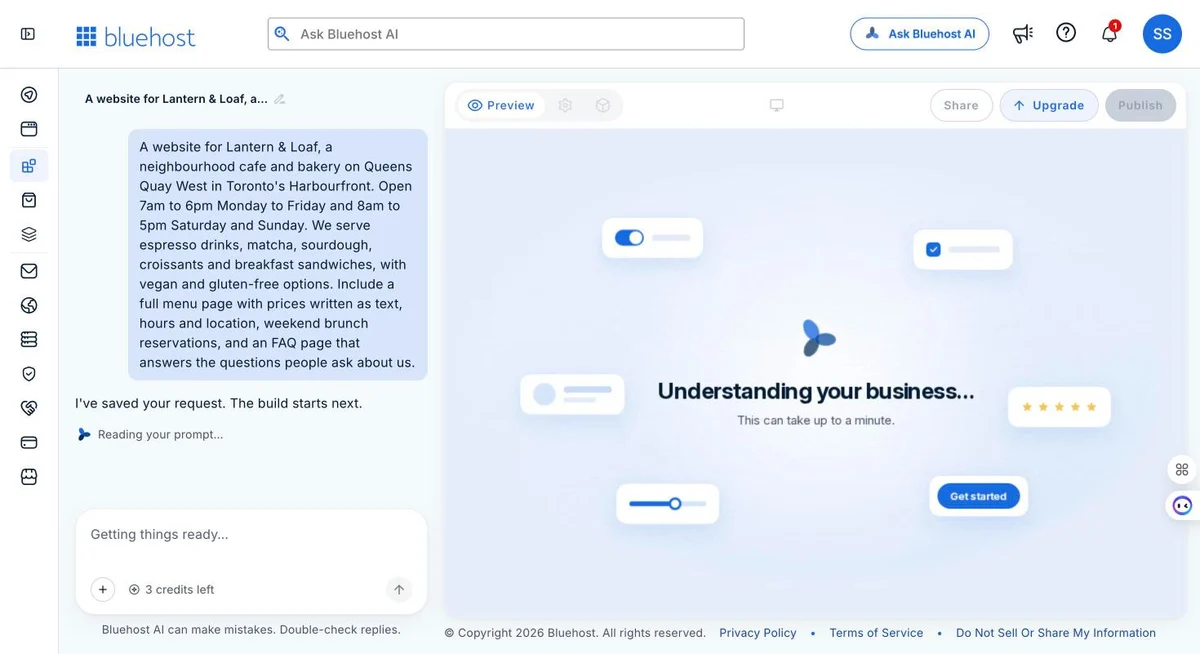
The builder works from the facts you give it. So the first prompt carried everything a customer, or an AI tool, would ask: the name, the neighbourhood, the hours, the menu, dietary options, brunch reservations and an FAQ. I also asked for prices “written as text”, so every price would be readable on the page.
Step 2: Let it build, then look at what it made
The first version took about four to five minutes and used one credit. It came back with five pages: Home, Menu, Brunch, FAQ and Visit, in a calm sage green that suits a neighbourhood café.
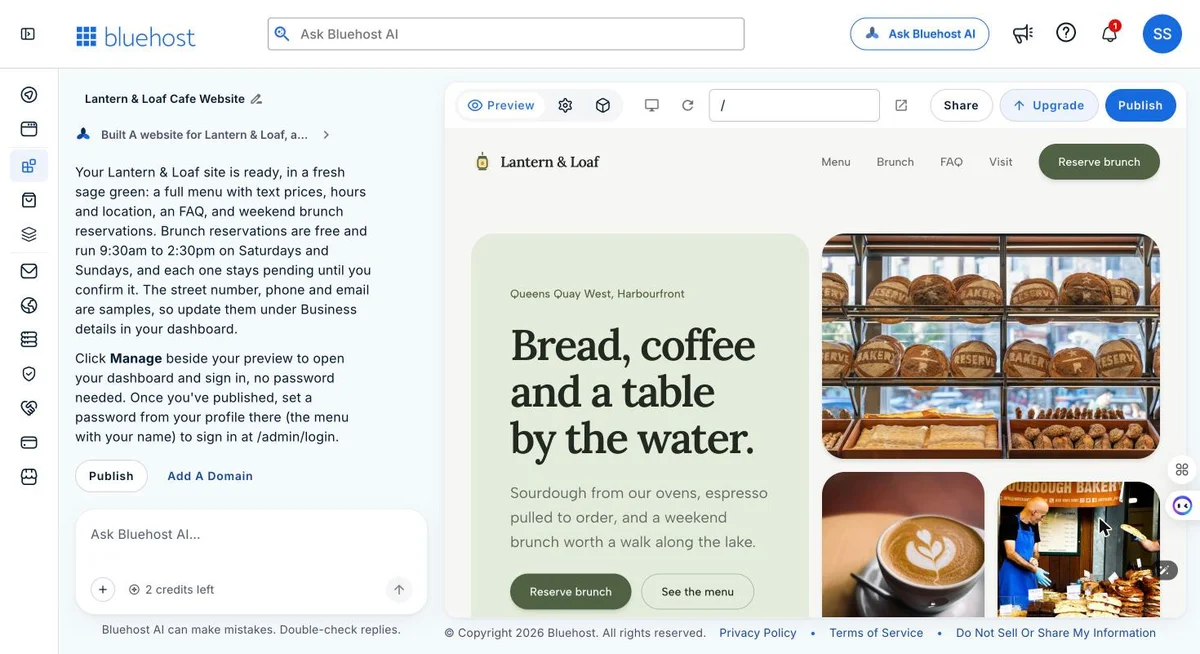
Then I read the page code, not just the design. Three things stood out:
- The menu is real text. 58 prices on the menu page, each item with a description and vegan or gluten-free tags.
- The FAQ answers real questions. 11 of them, from opening hours and directions to allergies and dogs on the patio.
- The text is in the HTML. The page content arrives with the page itself, so a crawler doesn’t need to run JavaScript to read it.
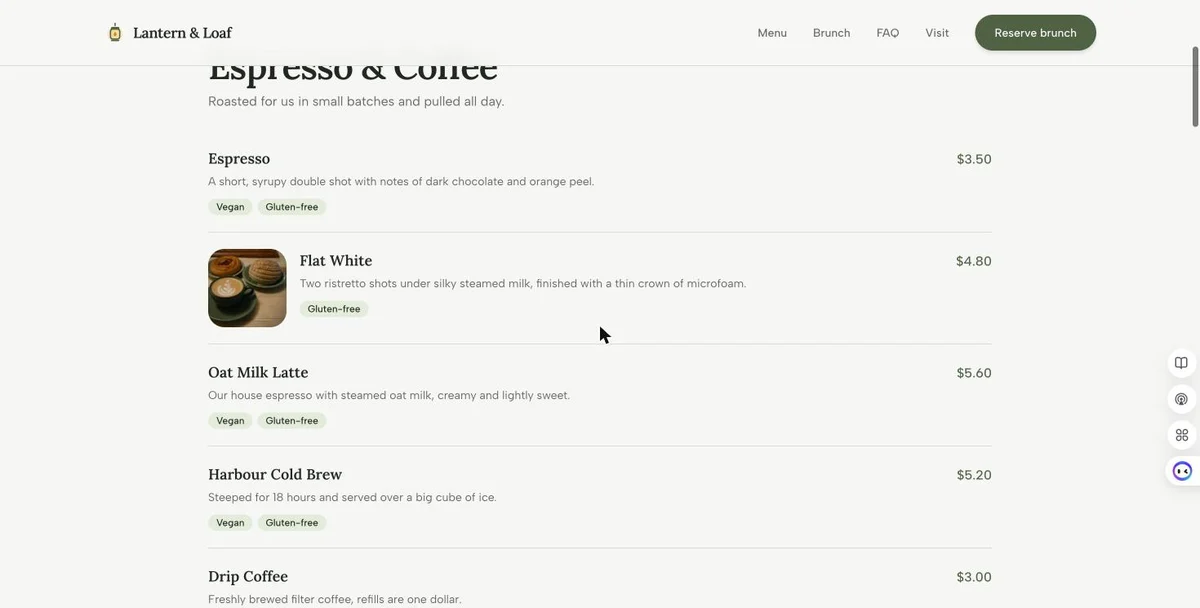
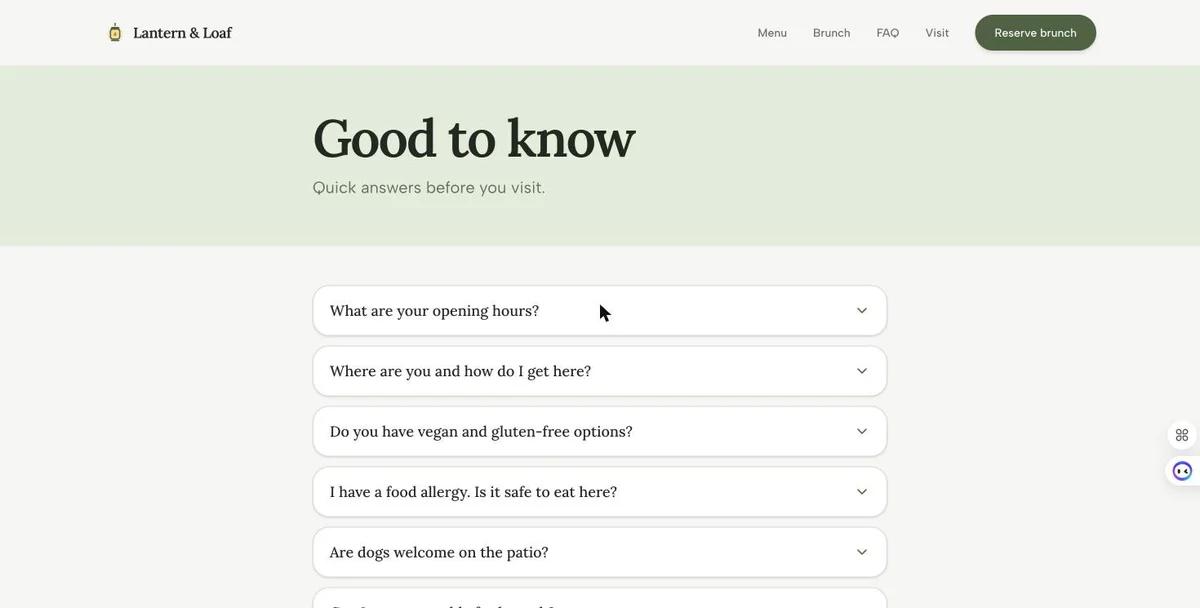
That is a strong base for AI search. Next, I added the technical extras that help machines read it.
Step 3: Ask for the AI search upgrades in one message
Each message costs one credit, no matter how much is in it. So I asked for the AI search upgrades together:
“Add a sitemap.xml that lists every page, café and bakery schema on every page plus FAQ schema on the FAQ page, put Lantern & Loaf and Toronto in every page title, and add an llms.txt that sums up the café, hours, menu and FAQ.”
Shortened from my actual message, which listed each change as a numbered item.
About two minutes later, the builder replied that the changes were in and the site checks passed.
Step 4: Check the results in the code
I opened each file and read the page code to confirm the changes were there:
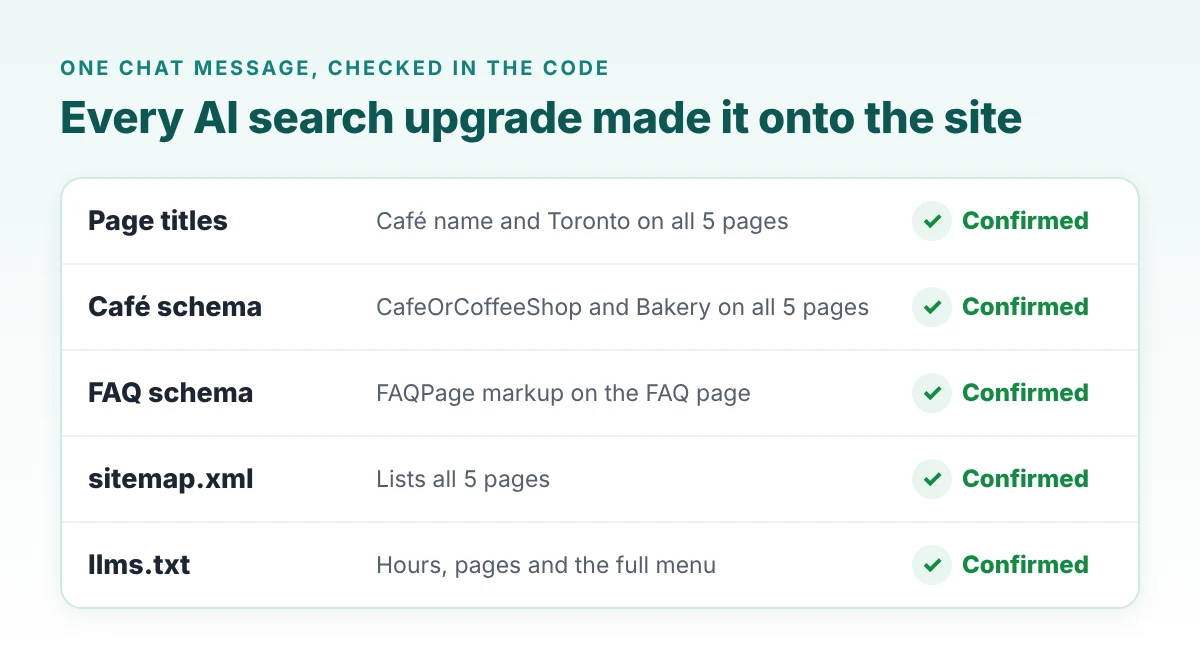
- Page titles: the home page became “Lantern & Loaf | Toronto Harbourfront Cafe and Bakery”, and every other page title includes the café name and Toronto.
- Schema: every page now has CafeOrCoffeeShop and Bakery markup with the hours, menu link, price range and reservations link. The FAQ page also has FAQPage markup.
- Sitemap: a sitemap.xml listing all 5 pages.
- llms.txt: a plain-text summary with the hours, every page and the full menu with prices.
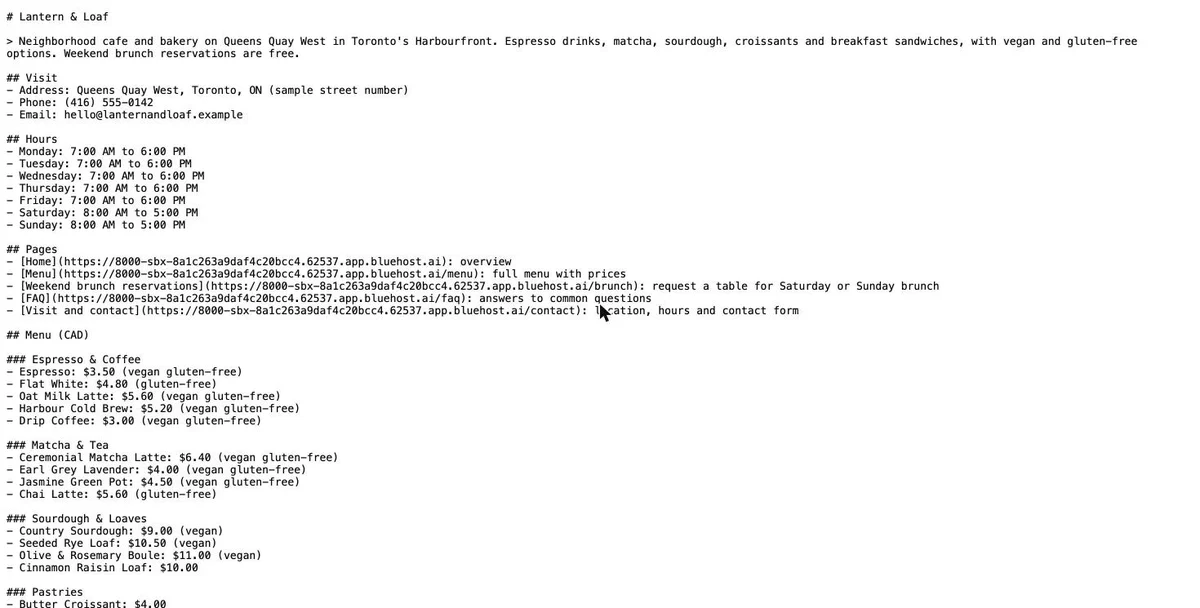
A quick word on llms.txt. It is a proposal by Jeremy Howard of Answer.AI rather than an official standard like robots.txt, so think of it as a helpful extra.
Step 5: Swap the samples for your real details
One thing I liked: the builder tells you which details are placeholders. In its first reply it pointed out that the street number, phone and email were samples to update under Business details in the dashboard. Before you publish, add:
- Your full street address and postal code
- Your real phone number and email
- Your own menu prices, if they differ from the AI’s
The schema, sitemap and llms.txt pick up your details from the same place, so updating them once keeps everything consistent.
Step 6: After you publish, run the live checks
Once the site is live on your domain, these checks apply to any website, whichever tool built it:
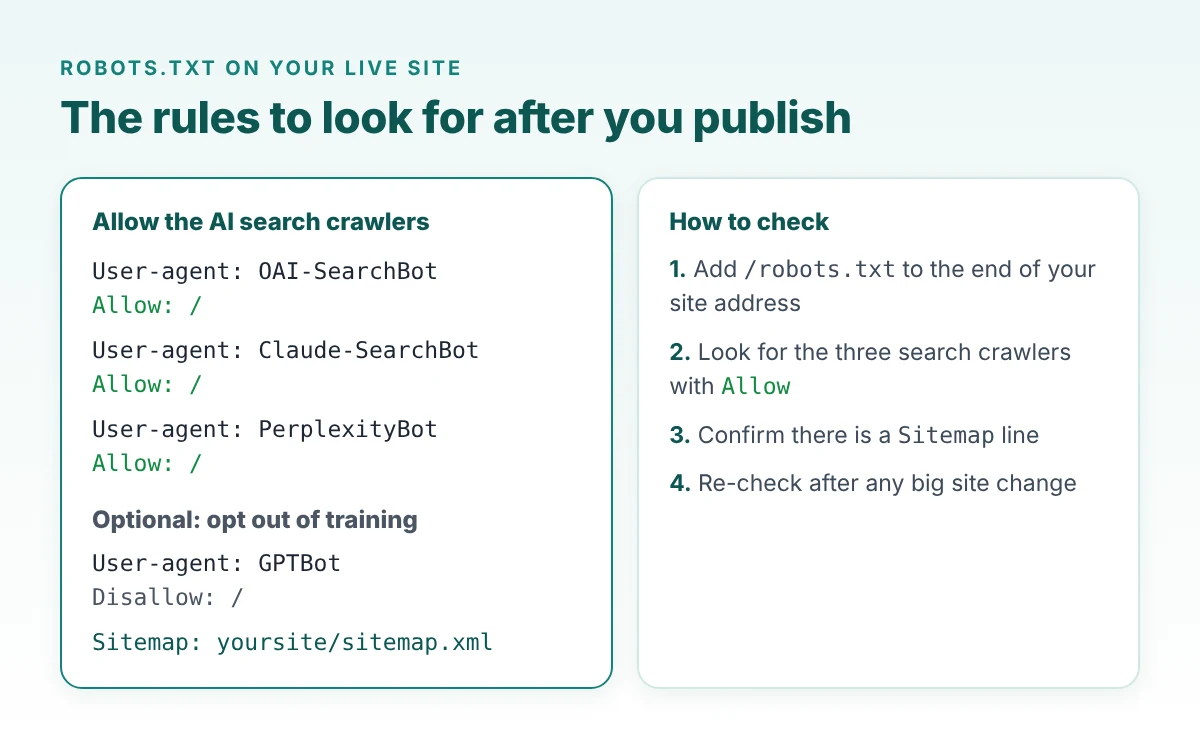
- Open yoursite/robots.txt. Make sure the crawlers AI companies use for search, OAI-SearchBot, Claude-SearchBot and PerplexityBot, are allowed, and that there is a Sitemap line. If anything looks off, Bluehost’s 24/7 support can help.
- Run Google’s Rich Results Test. Google recommends it for checking structured data, then the URL Inspection tool in Search Console for the live page.
- Match your listings. Your Google Business Profile, Apple Maps and Yelp should show the same name, address, hours and phone as your site.
Search crawlers and training crawlers are separate, so you can stay visible in AI answers while opting out of training:
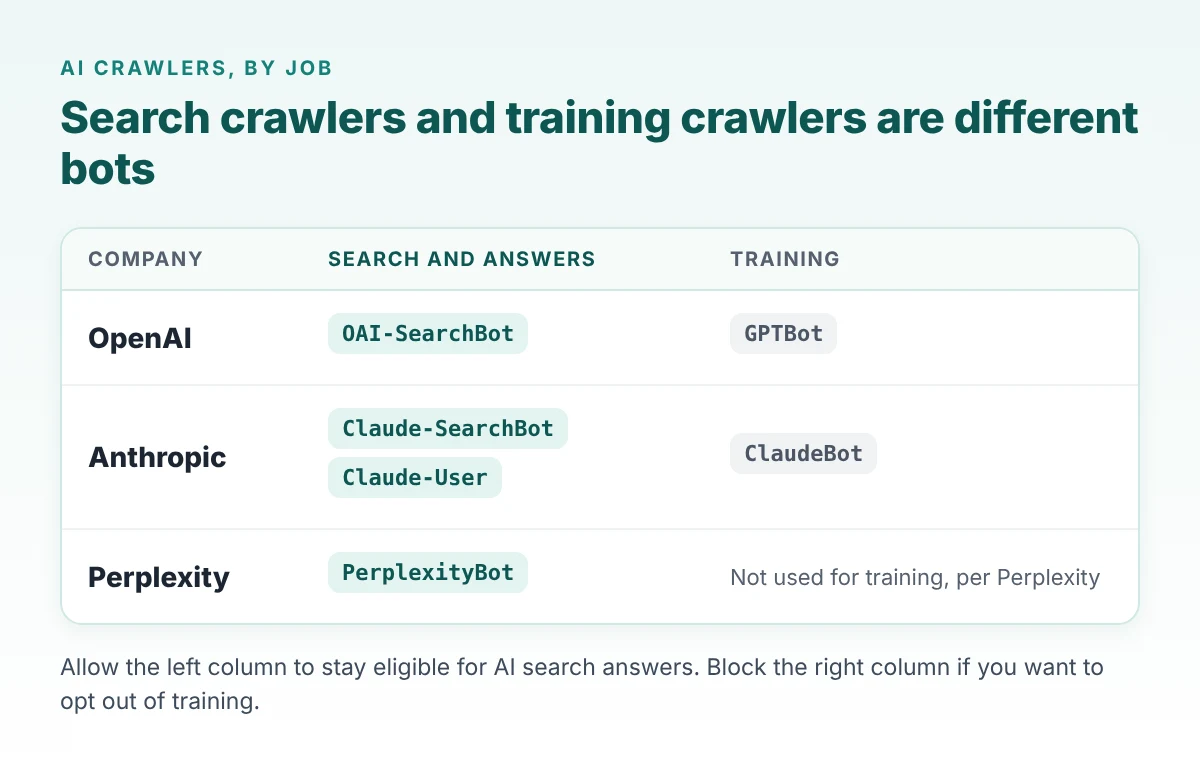
- OpenAI says sites that opt out of OAI-SearchBot will not be shown in ChatGPT search answers.
- Anthropic says blocking Claude-SearchBot may lower your visibility in Claude’s search results.
- Perplexity recommends allowing PerplexityBot if you want to appear in its results.
I cover the training side in detail in how to block AI training without disappearing from AI answers.
For restaurants and cafés, the website is one part of what AI tools read. Reviews, listings and local press all feed the answer, which is the work we do in restaurant and hospitality marketing and AI search optimization.
Try it with your own café or restaurant. One prompt gets you a menu, an FAQ and reservations. $0 to start, no credit card.
Start free with Bluehost AI BuilderAffiliate link. We may earn a commission if you upgrade, at no extra cost to you.
Common mistakes
- A thin first prompt. The more facts you give up front, the more complete the first version is.
- Spending one credit per small change. Batch changes into one message. Five changes cost the same as one.
- Leaving samples live. Swap in your real address, phone and prices before you publish.
- Blocking every AI bot to be safe. Blocking training crawlers and blocking search crawlers are two different decisions.
- Putting the menu in a photo. Ask for prices written as text, as I did in step 1.
Quick recap checklist
- Prompt includes name, area, hours, menu, dietary options and reservations
- Menu and hours are written as text on the page
- Page titles include the business name and city
- LocalBusiness-type schema on every page, FAQPage schema on the FAQ
- sitemap.xml lists every page
- robots.txt allows OAI-SearchBot, Claude-SearchBot and PerplexityBot, checked on the live site
- Every sample detail replaced with the real one
- Rich Results Test passed, listings match the site
To track whether ChatGPT, Perplexity and Google actually start naming you after launch, use our free GEO and AI visibility tracker template.
Frequently asked questions
Can Bluehost AI Builder add schema markup?
Yes. When I asked in chat, it added CafeOrCoffeeShop and Bakery schema to every page and FAQPage schema to the FAQ page, and I confirmed both in the page code.
Can Bluehost AI Builder make a sitemap and an llms.txt file?
Yes. One chat message added a sitemap.xml listing all five pages and an llms.txt with the hours, pages and full menu.
What is the difference between GPTBot and OAI-SearchBot?
GPTBot is OpenAI’s training crawler. OAI-SearchBot is the crawler OpenAI uses for ChatGPT search. You can block GPTBot and still allow OAI-SearchBot.
Do I need an llms.txt file?
It is optional. llms.txt is a proposal rather than an official standard, so treat it as a helpful extra. Bluehost AI Builder added one when I asked.
How many credits does this take?
The two messages in this guide used one credit each: one for the first version and one for the AI search upgrades. The free plan gives you 5 credits a day, up to 30 a month. Paid plans from $20/mo give you more.
Give it the facts. It builds the rest.
Bluehost AI Builder turned one detailed prompt into a café site with a real text menu, an FAQ and brunch reservations, then added schema, a sitemap, an llms.txt and better page titles from one more message.
Add your real details, run the live checks, and you have a site AI search can read.
Two messages. One café site AI search can read.
Build your café or restaurant site today. Bluehost AI Builder is $0 to start, no credit card, and paid plans from $20/mo when you want your own domain.
Try Bluehost AI Builder freeAffiliate link. Digital 6ix is paid by Bluehost for this post and may earn a commission.
Ask AI where to eat near you. Are you in the answer?
A website AI can read is step one. Being the café it actually recommends is step two.
Run a free Radar scan to see if AI names your business, which competitors it picks instead, and three quick wins.
Takes 30 seconds. No email needed.
Scan my business free →
About the author
Simar Singh leads Digital 6ix, a Toronto agency for SEO, GEO and content. He tests AI tools by building with them and reading the code behind the result, then shares what he finds. Free templates from his audits are at digital6ix.ca/templates. Say hello on LinkedIn.
Sources
Is your café in the answer?
Ask Radar what AI tools say when someone nearby asks for a café like yours. Thirty seconds, no sign-up.
Check my caféWant a second pair of eyes?
Book a free call and we will look at your schema, listings and AI visibility together.
Book my free call